 Block&Read
The built-in options (and their escape hatches)
Screen Time app limits
Settings → Screen Time → App Limits lets you cap daily usage per app. It works, until the limit hits and iOS offers "Ignore Limit → One More Minute / Remind Me in 15 / Ignore For Today." A blocking system with a built-in ignore button isn't a wall; it's a suggestion. Most people tap through it within the week.
Focus modes
Focus can silence apps and hide home screens on a schedule. Good for notifications, weak for compulsion: the apps are still there, one search away, and turning the whole mode off takes two taps.
Downtime
Downtime blocks nearly everything at set hours, often too blunt (it catches apps you legitimately need) and, again, dismissible by design.
Apple's tools assume the problem is forgetting. The actual problem is wanting.
What a block needs to hold
- An unlock that costs real engagement, not waiting (free), not tapping ignore (free), but an act that takes over your attention.
- A payoff on the other side: pure denial builds resentment, and resentment uninstalls blockers. The toll should leave you better off than the scroll would have.
- A no-negotiation option, for the hours you trust yourself least, the escape hatch must not exist at all.
Blocking apps with Block&Read, step by step
- Install Block&Read (free) and open it.
- Grant the Screen Time permission when prompted: this is what lets the app intercept your chosen apps. It's Apple's own framework: nothing about your usage leaves the device.
- Pick your apps: up to two free, unlimited with Premium. Choose by damage, not by number: your top two time sinks cover most of the bleeding.
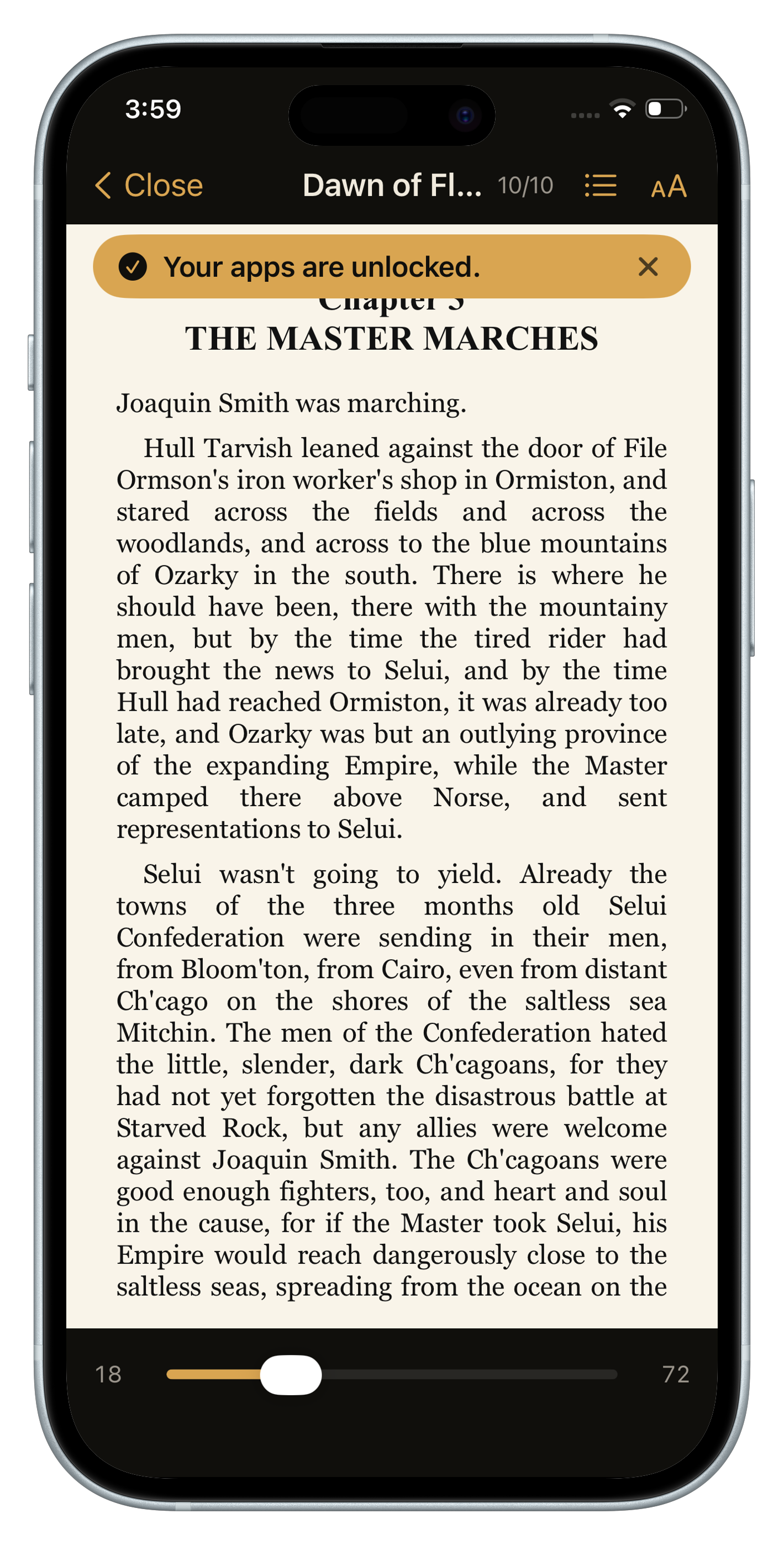
- Set the daily reading goal: a page or two to start. From now on, opening a blocked app opens your book instead; hitting the goal unlocks everything for the day.
- Enable Strict Mode if you mean it, no dismiss, no timer, no override. The pages are the only key.
- (Premium) Add schedules: block only during work hours, evenings, or whenever your weak windows are.
Why this block holds when the others don't
- The unlock is engagement, not patience: you can't wait it out; you read your way out.
- The toll pays you back: every bypass attempt adds pages to your streak. The system converts your weakness into your reading list.
- Strict Mode removes the negotiation that kills Screen Time limits.
- Private by design: no accounts, no analytics; the blocker never phones home.
Questions people also ask
Can I block apps on iPhone without an Ignore Limit button?
Screen Time limits always offer Ignore Limit, One More Minute or Ignore For Today. To remove that escape hatch you need a blocker with a strict mode, like Block&Read's Strict Mode, where reading is the only way through.
Does an app blocker see my usage data?
Block&Read uses Apple's own Screen Time framework, so nothing about your usage leaves the device. It has no accounts and no analytics.
How many apps should I block?
Start with your two biggest time sinks. They usually cover most of the wasted hours, and two apps is what Block&Read's free plan blocks.
Block the apps. Keep them blocked.
Free to download · No ads, no accounts, no tracking
Get Block&Read